前言
在上一个章节中,我们完成了在没有虚拟化的 Windows 中部署 Docker 的操作,如果你此时还没有读过它,笔者非常建议你先完成前置步骤 如何在 Windows 上利用 Windows Continer 使用 Docker
本篇中,我们将带你一起看看实际生产中,这个Docker需要面临的问题和情况
TL; DR
Windows Continer 版本的 Docker 实在是太特殊了(对于整个Docker生态而言),我们必须为各种基础设施自己来制作镜像
灾难立刻就来了
手快的朋友,一定已经在第一时间完成了上一篇内容中的搭建操作,也跟着笔者进行了一个简单的 Hello World . 到此为止,一切内容看起来都是那么的祥和.
当我们真正想要启动一个市场镜像时,docker 会给我们带来承重一击
本示例试图启动一个
Docker Registry的镜像
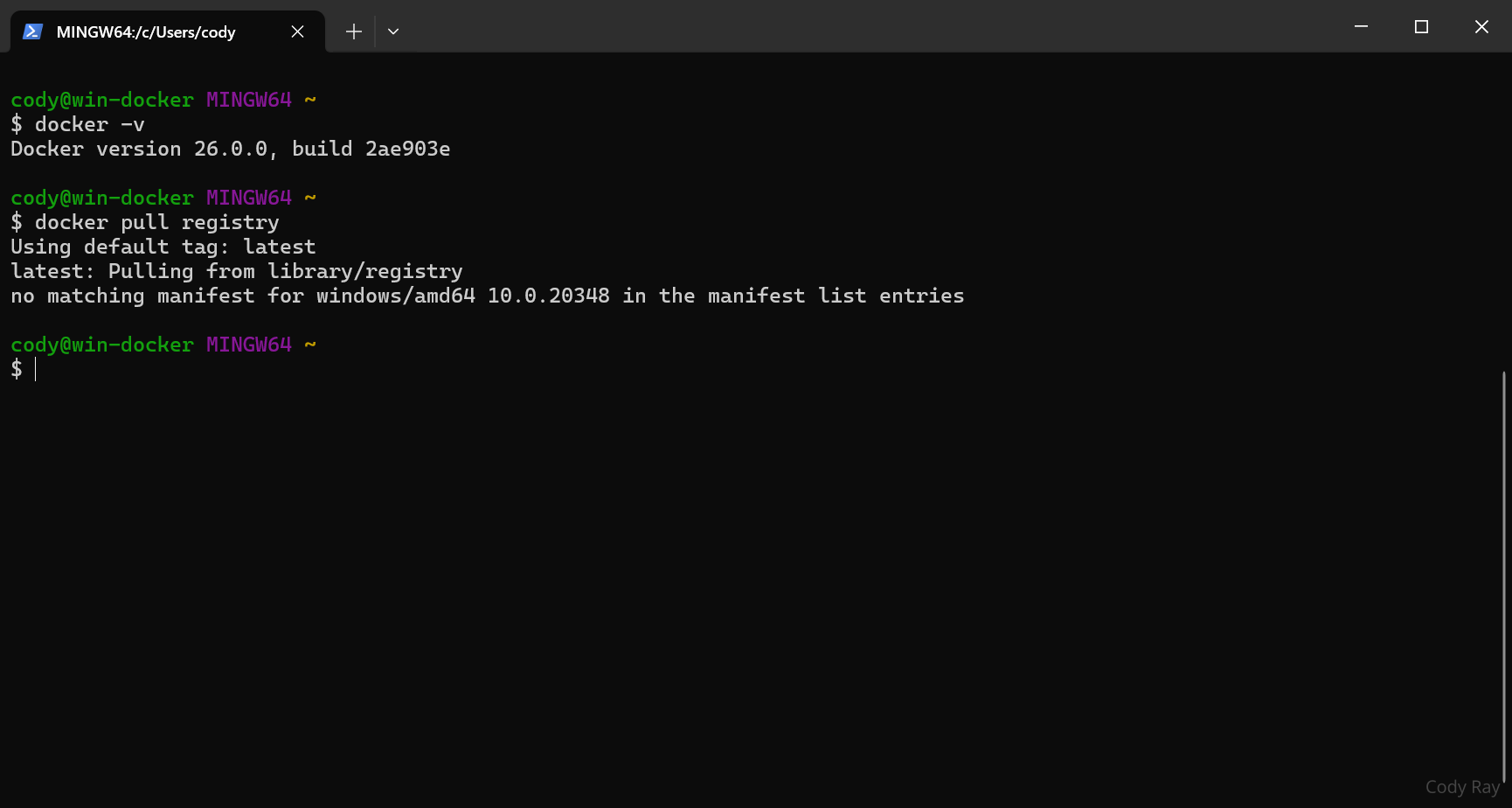
作为最大最常用的公共镜像库 Docker Hub 居然没有为我们提供官方支持 Windows 的 Registry
我们很快在市场中找到了一个来自社区的 registry-windows
本示例试图启动
stefanscherer/registry-windows镜像
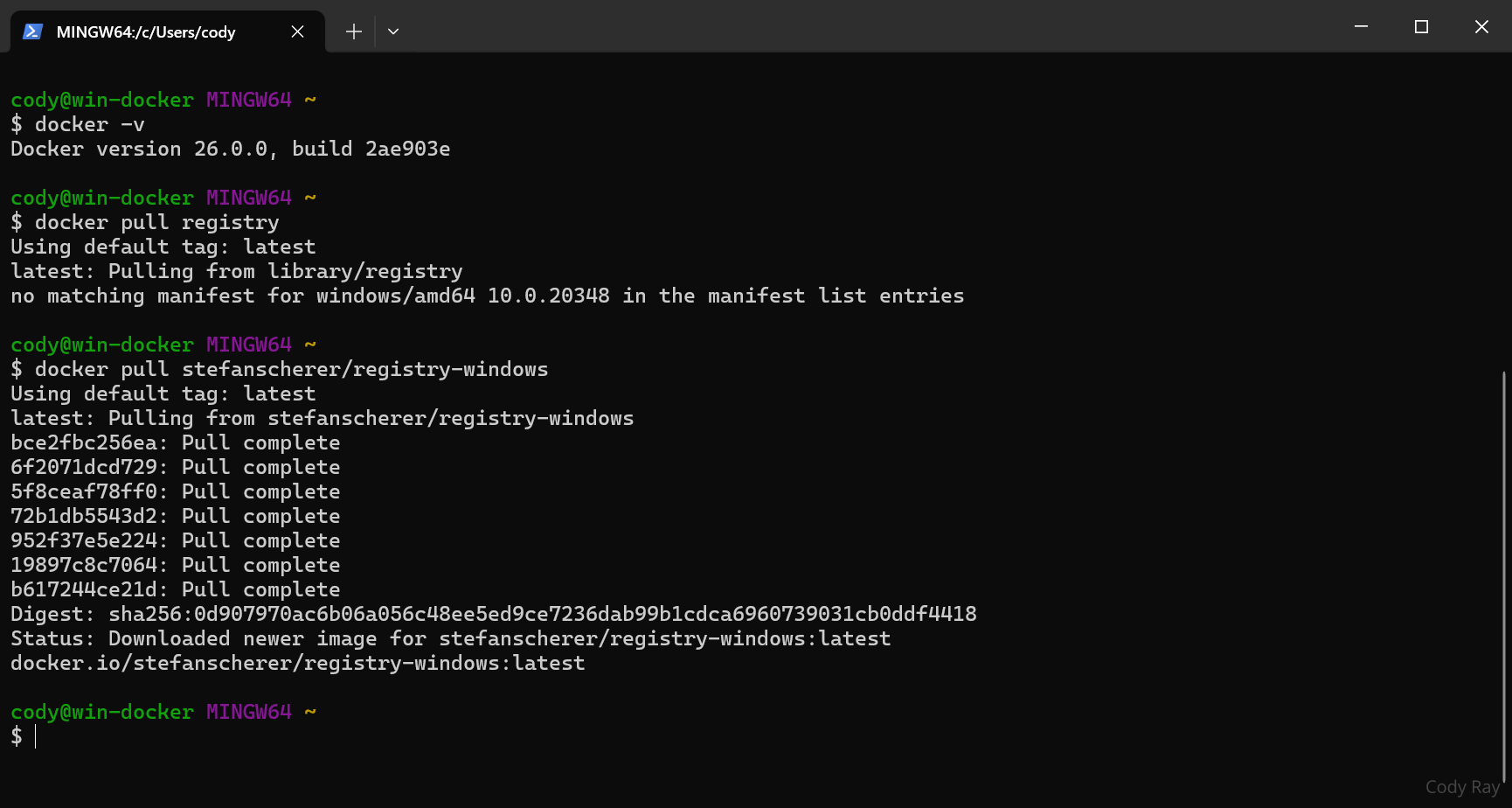
果然适配了Windows的镜像被我们顺利的下载下来了,当我们启动它时,Docker 再次向我们带来致命一击

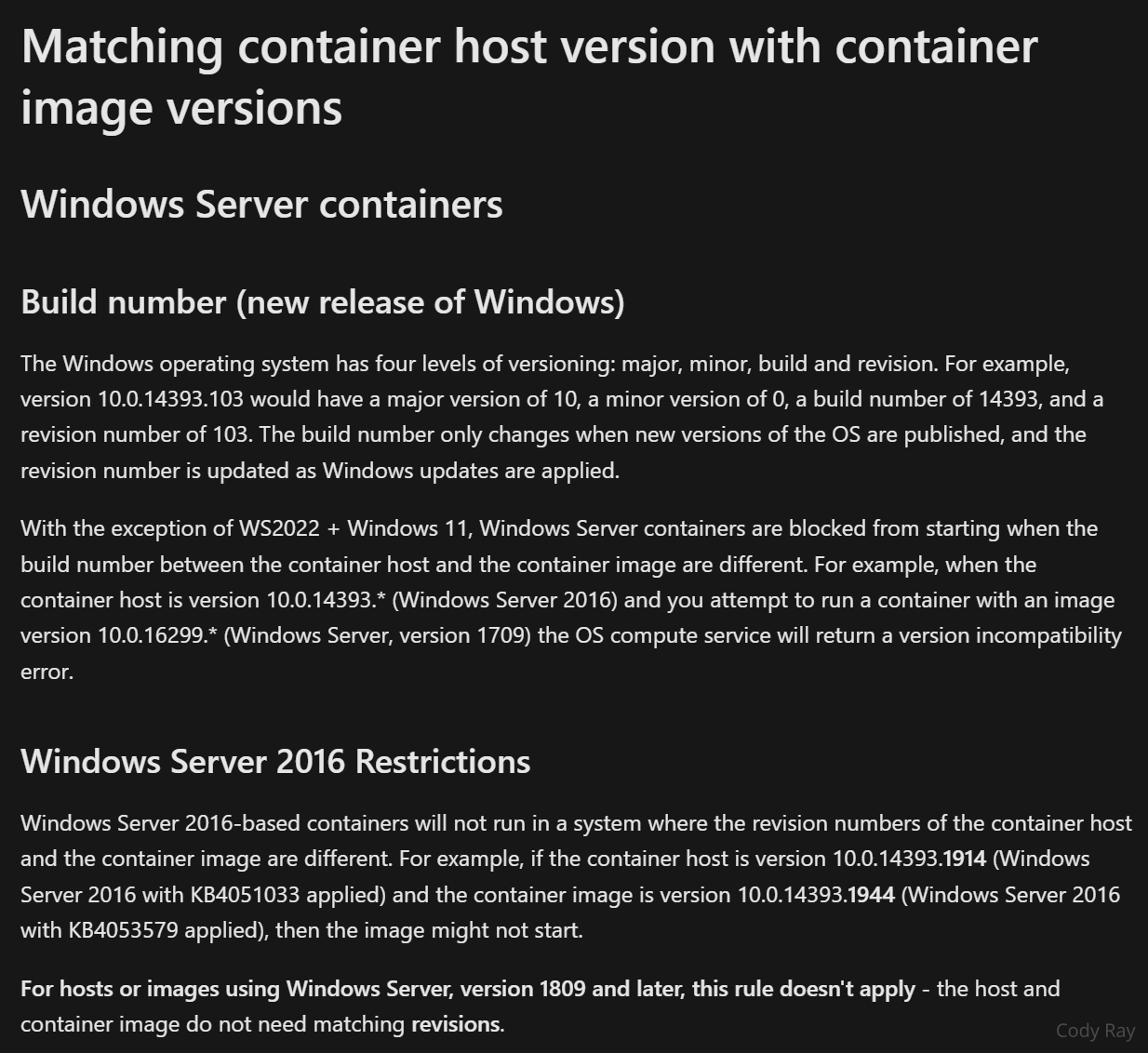
它居然无法启动,还和我们无情的甩出了一张 系统不兼容
来自 Windows Continer 的限制
简而言之, 由于 Windows 用户模式 (用户态) 与 内核模式 (内核态) 相互耦合,但Continer的设计上很大程度的依赖一些用户模式下对内核的特殊调用,Windows 自己也不能保证跨版本是否会出现不可预料的问题,因此 Windows Continer 主动的拒绝启动这些因为版本不一致而含有风险的镜像
真正的! 第一个 Image
不得不说当笔者看到限制的内容时,煞那间窒息的感觉用上头,充满了整个大脑,为了这个 Docker ,我们不得不手动为自己打包镜像,所幸的是,如今绝大部分的程序都是使用各种运行时启动的,而这些运行时与程序大概率也能在 Windows 中运行,我们除了需要手动打包这些镜像以外,也没有什么其他值得注意的地方了。
回到 Registry
Docker Registry 所运行的程序 distribution 是由 Golang 编写的,很幸运,在第一个 Image 中,我们很轻松的就能让 Golang 在 Windows 中跑起来,让我们来编写一个简单的 Dockerfile 来打包一个 Image
编译 、打包 Image
mkdir registry
cd registry
vim Dockerfile
Registry Dockerfile
FROM golang as build

SHELL ["powershell", "-Command", "$ErrorActionPreference = 'Stop'; $ProgressPreference = 'SilentlyContinue';"]

RUN git clone -q https://github.com/distribution/distribution ; \
    cd distribution ; \
    go build -o registry.exe cmd/registry/main.go

FROM mcr.microsoft.com/windows/nanoserver:ltsc2022

COPY --from=build /go/distribution/registry.exe /registry.exe
COPY config.yml /config/config.yml

EXPOSE 5000

ENTRYPOINT ["\\registry.exe"]
CMD ["serve", "/config/config.yml"]
在这个 Dockerfile 中,我们做了这些事情
- 使用了 golang 来作为我们的构建镜像
- 将powershell设置为之后执行的命令行程序
- 获取
distribution的仓库进行编译 - 准备一个用于发布的镜像包
- 将主要的程序复制到发布镜像包中
- 打开
5000端口 - 设置镜像默认启动程序
接下来。我们要为 distribution 配置一些初始选项放在 config.yml 文件中
vim config.yml
version: 0.1
log:
  fields:
    service: registry
storage:
  cache:
    blobdescriptor: inmemory
  filesystem:
    rootdirectory: /registry
http:
  addr: :5000
  headers:
    X-Content-Type-Options: [nosniff]
health:
  storagedriver:
    enabled: true
    interval: 10s
    threshold: 3
validation:
  disabled: true
保存后开始我们的镜像构建
docker build -t registry-windows .
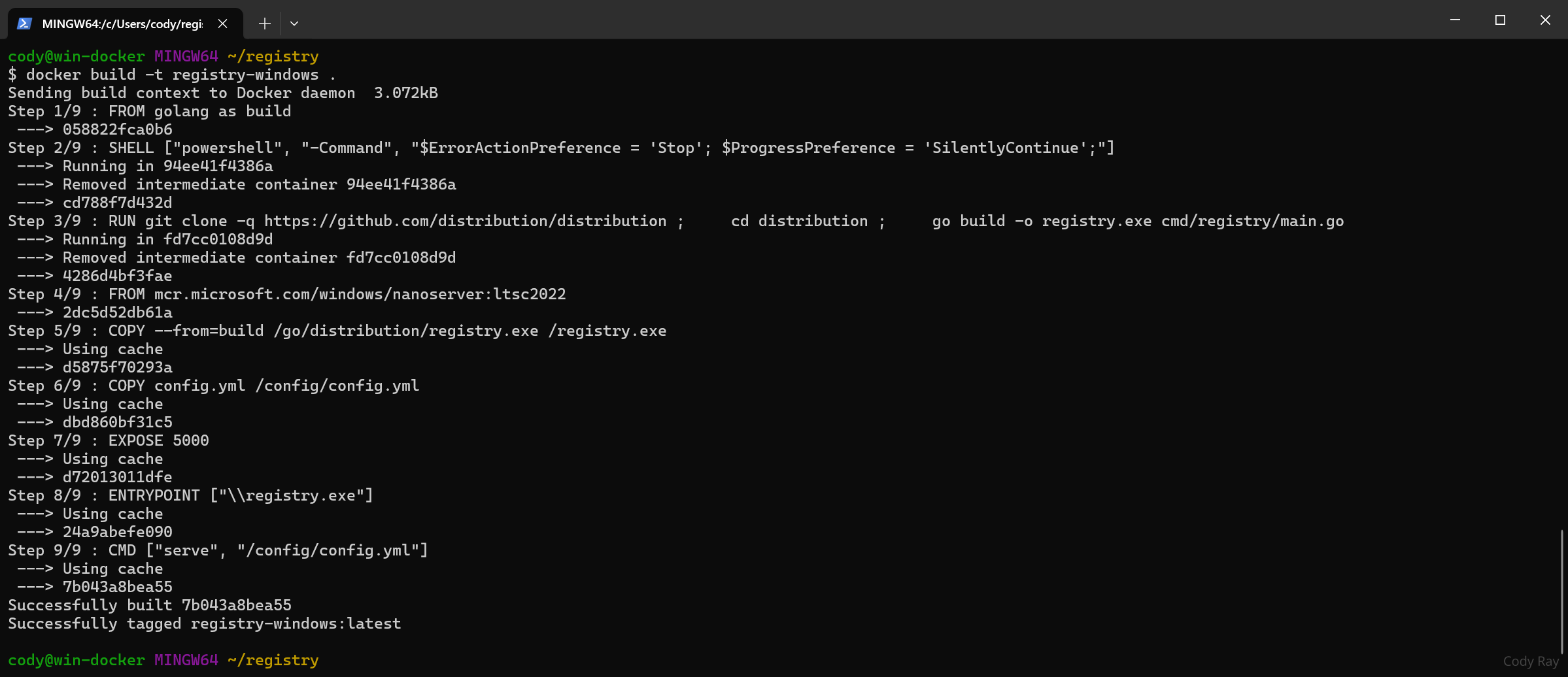
大功告成!
测试真正的 Hello World
让我们试着启动一下它
docker run -it registry-windows
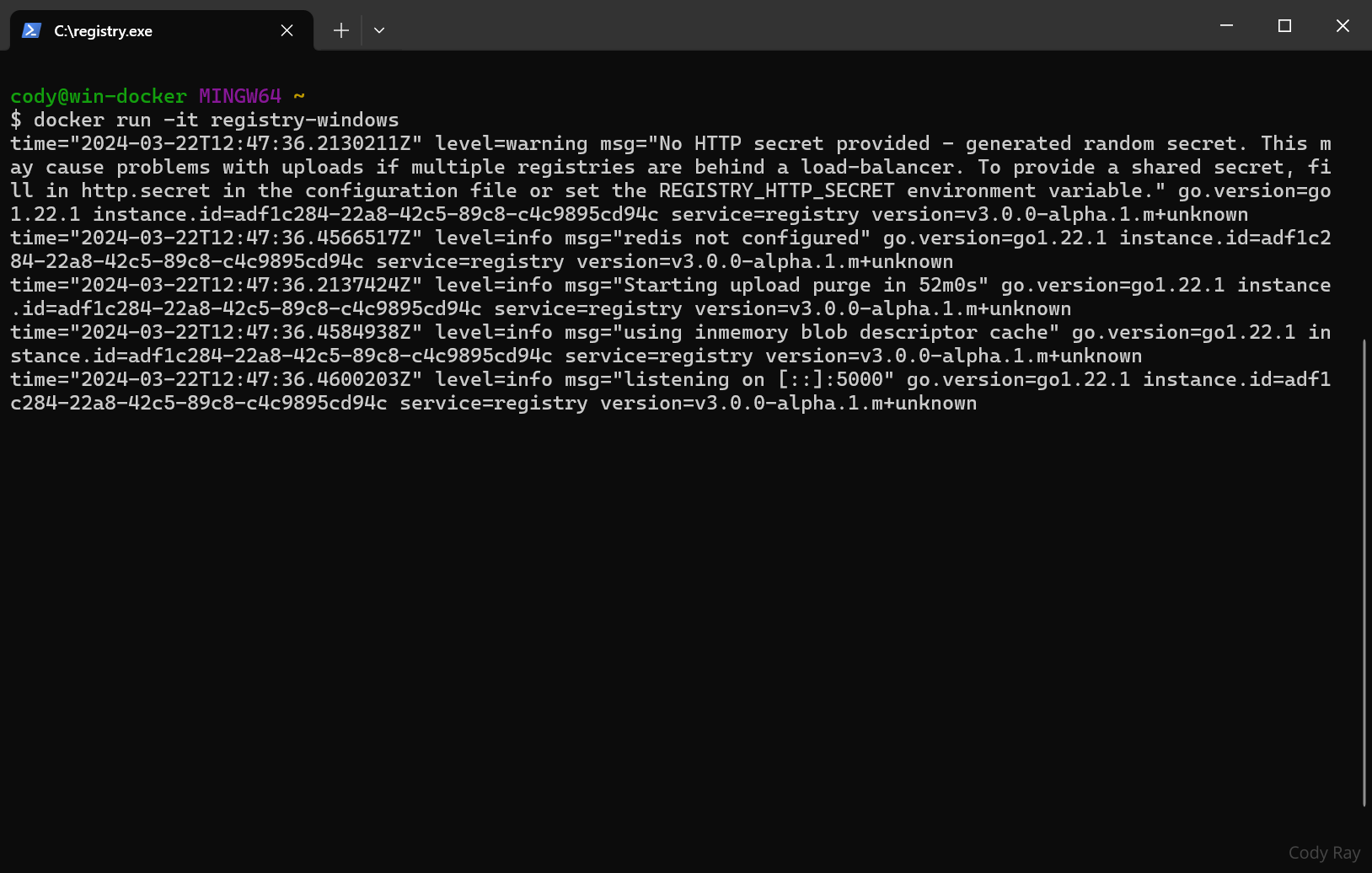
我们已经成功的在我们的 Docker 中启动了 Docker Registry
让我们按下 Ctrl + C 终止这个这个临时的实例,使用一种更稳定的方式在后台运行
mkdir /c/registry

docker run -d -p 5000:5000 --restart=always -v C:/registry:C:/registry --name registry registry-windows
这组个命令相对之前增加了一些设置
| 参数 | 解释 |
|---|---|
-d |
将容器作为后台进程运行 |
-p 5000:5000 |
将容器内部的端口 5000 映射到主机的端口 5000 |
--restart=always |
除主机主动操作停止以外,任何的停机都会重启容器 |
-v C:/registry:C:/registry |
将主机中的目录 C:/registry 挂在到容器内的 C:/registry |
--name registry |
为这个实例起一个名字 registry |
现在我们可以通过 docker ps 命令在运行中的容器列表中看到它了
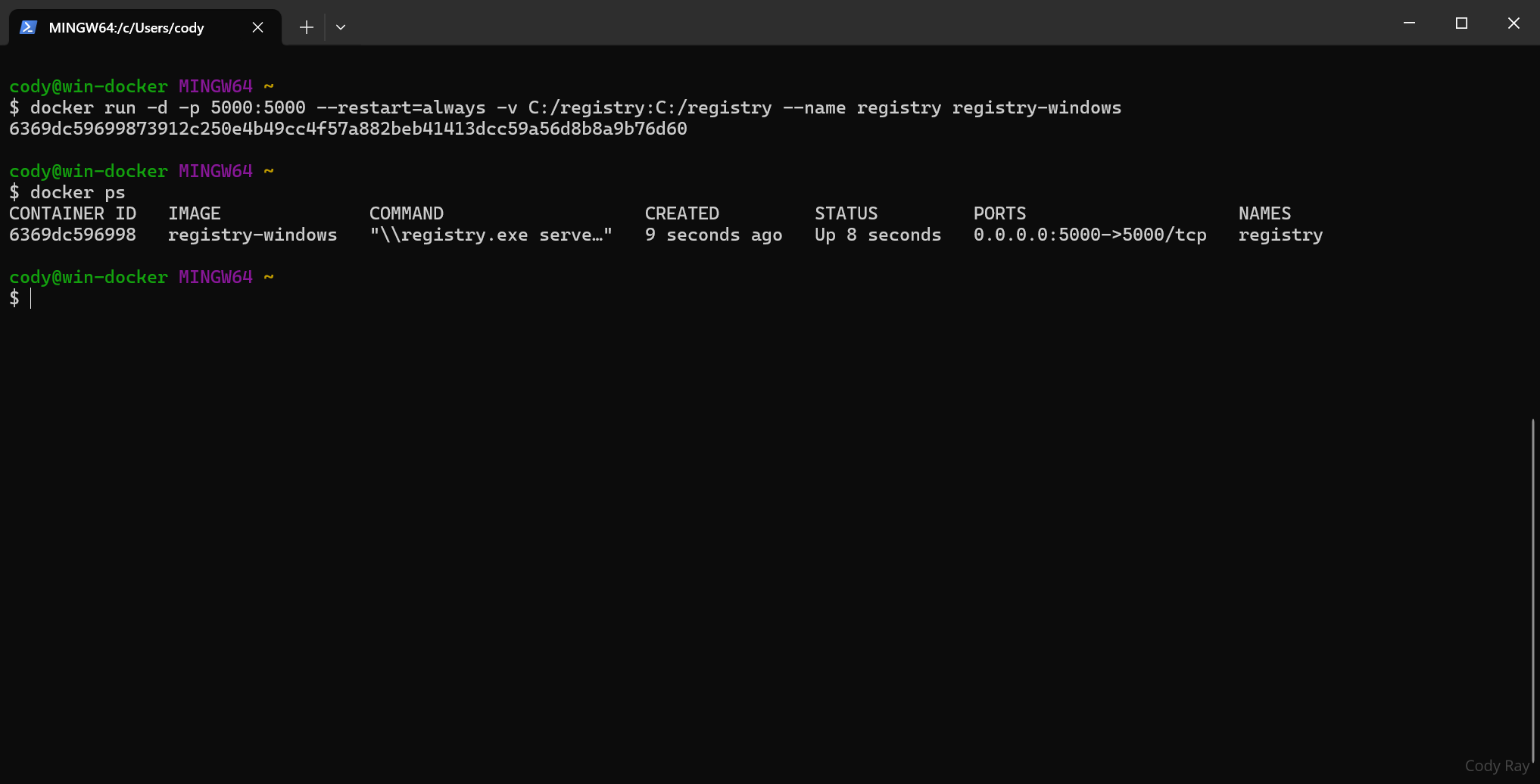
使用 Registry 保存 Image
由于我们刚刚启动的
Registry尚未受到TLS的保护,关于如何设置Registry的TLS证书不在本篇范围,具体请参考 Verify repository client with certificates
为本机配置不安全的注册表
vim /C/ProgramData/docker/config/daemon.json
在文件中添加以下内容
{
  "insecure-registries": ["127.0.0.1:5000"]
}
重启 docker
net stop docker
net start docker
现在,我们可以试着将我们刚刚完成打包的 registry-windows 提交到 Registry 中
#为registry-windows设置一个 tag
docker tag registry-windows localhost:5000/registry:1.0.0

docker push localhost:5000/registry:1.0.0
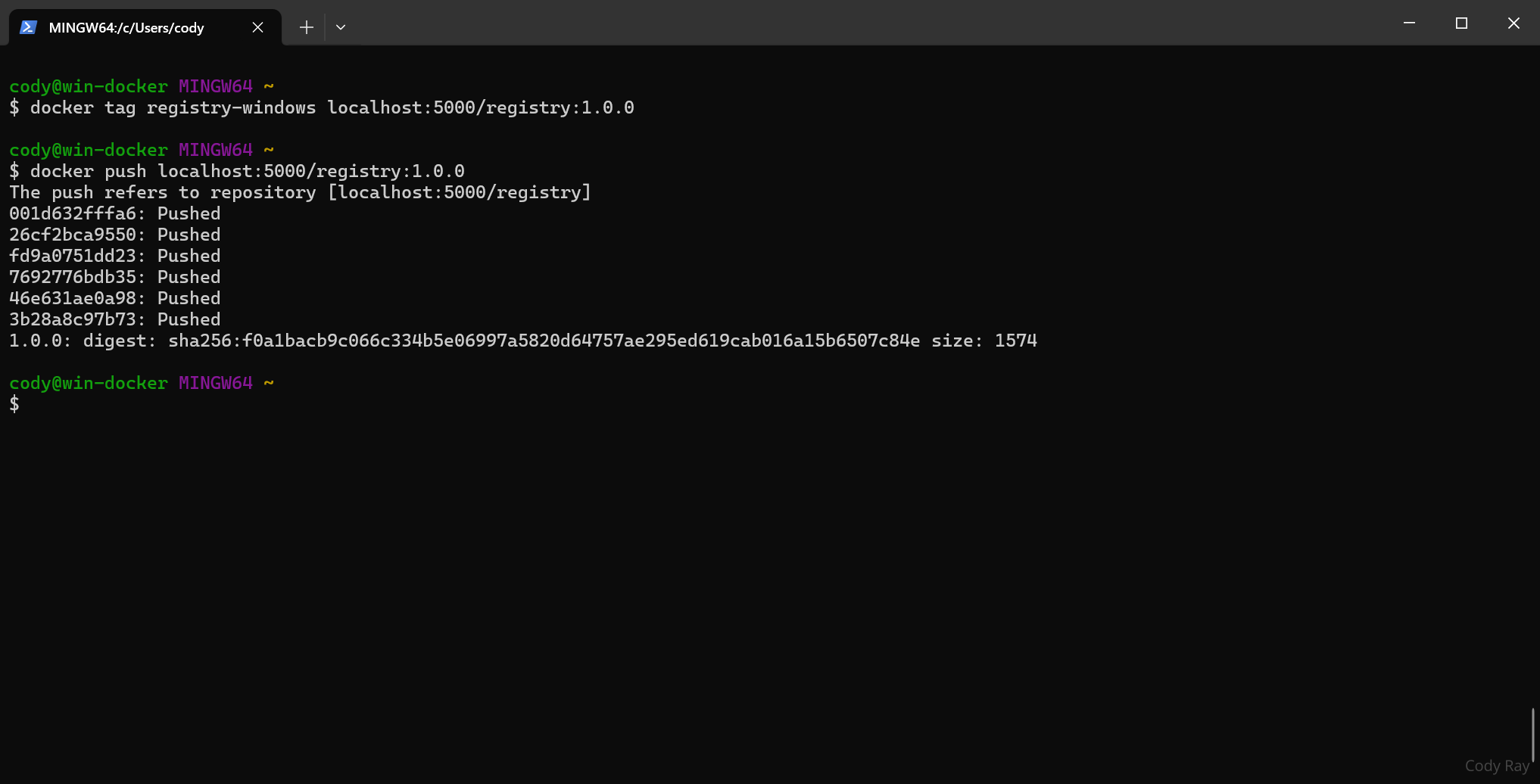
大功告成!
结语
虽然 Windows Continer 中的 Docker 在实际生产中有一定的受限,但仍值得我们一试,虽然这种方式舍弃了 Docker 本身开箱即用的能力,除非运气足够好,很难发现能直接运行的镜像...
推荐仓库: https://github.com/StefanScherer/dockerfiles-windows
Stefan Scherer 为大量的基础设施应用编写了支持 Windows Continer 的 Dockerfile. 参考本仓库,可以快速的在自己的 Docker 中打包出符合需求的镜像,节省大量调试时间
这篇文章深入探讨了在Windows容器中部署生产级Docker项目时面临的挑战,通过具体案例(如Docker Registry的适配过程)清晰地揭示了Windows容器生态的独特性。作者以实践为导向,通过手动构建镜像的完整流程,为读者提供了可复用的技术方案,这种“授人以渔”的写作风格值得赞赏。
文章最突出的价值在于对Windows容器兼容性限制的精准定位。通过引用微软官方文档的链接和具体的错误截图,作者不仅验证了“用户态与内核态耦合导致镜像版本冲突”的核心观点,更通过实际构建Golang镜像的案例,证明了在Windows容器中自定义镜像的可行性。这种理论结合实践的论证方式,有效增强了技术结论的可信度。
在技术实现层面,作者提供的Dockerfile和配置方案具备高度可操作性。分阶段构建(build stage和final stage)、路径映射、端口暴露等细节处理都体现了对Docker构建流程的深刻理解。特别是对
config.yml中关键配置项的注释,为读者避免了常见的配置陷阱。推荐Stefan Scherer仓库的举措,也为社区资源的共享与协作提供了重要参考。若论改进空间,文章可以在两个维度进一步拓展:首先,关于Windows容器与Linux容器的差异对比分析稍显薄弱,若能补充两种容器在生产环境中的适用场景(如.NET框架依赖场景选择Windows容器,微服务场景倾向Linux容器),将帮助读者建立更完整的决策框架。其次,安全配置部分的讨论尚显简略,虽然提及了TLS证书的重要性,但未展开说明如何在生产环境中实现安全的证书管理。建议后续可增加Windows容器的网络策略配置、Windows防火墙与Docker的协同工作等内容。
值得注意的是,文章在技术深度与可读性之间取得了良好平衡。对新手读者而言,可能需要补充基础概念(如“用户态/内核态耦合”)的简要解释,但作者选择通过实际现象(镜像无法启动)引出技术原理,这种渐进式说明更符合实践导向的读者需求。最后,关于“后台运行容器”的参数说明表格,用对比方式清晰呈现了关键配置项的用途,这种信息呈现方式值得借鉴。
总体而言,这篇文章为Windows容器的生产化部署提供了极具参考价值的实践指南。建议作者在后续章节中补充生产环境的监控方案(如Windows容器日志采集、性能指标监控)以及故障排查技巧(如Windows事件查看器与Docker日志的关联分析),这些内容将进一步提升文章的实用价值。
这篇文章详细介绍了如何在 Windows 环境下部署 Docker Registry,特别是在面临预构建镜像不可用的情况下。通过手动打包和配置,成功实现了Registry的功能,并提供了一系列有用的命令和配置说明,非常适合作为学习参考。推荐给需要在Windows环境下使用Docker Registry的开发者,特别是那些刚开始接触Windows Container的新手,能帮助他们快速上手并节省调试时间。
这篇文章详细介绍了在基于 Windows Container 的 Docker 中部署生产项目的过程,包括遇到的问题和解决方案。文章提到了 Windows Container 版本的 Docker 非常特殊,需要手动制作镜像,并且 Docker Hub 没有官方支持 Windows 的 Registry。作者通过编写 Dockerfile 来打包镜像,并成功地在 Docker 中启动了 Docker Registry。文章还介绍了如何使用 Registry 保存 Image。总的来说,这篇文章对于想要在 Windows Container 的 Docker 中部署生产项目的人来说非常有用。文章的闪光点在于提供了详细的步骤和解决方案,并且给出了实际操作的示例。文章可以进一步改进的地方是,需要更详细地介绍一些概念和术语,例如 Dockerfile、Registry、Image 等等,以便于读者更好地理解。